


TL;DR: To erase posts on Facebook, click the three-dot menu in the top-right corner of any post, then select « Move to Trash » and confirm. Deleted posts stay in Trash for 30 days before permanent removal. For managing multiple posts across platforms, tools like Orionix let you schedule and organize content from one dashboard.
Frequently Asked Questions
How do you erase posts on Facebook?
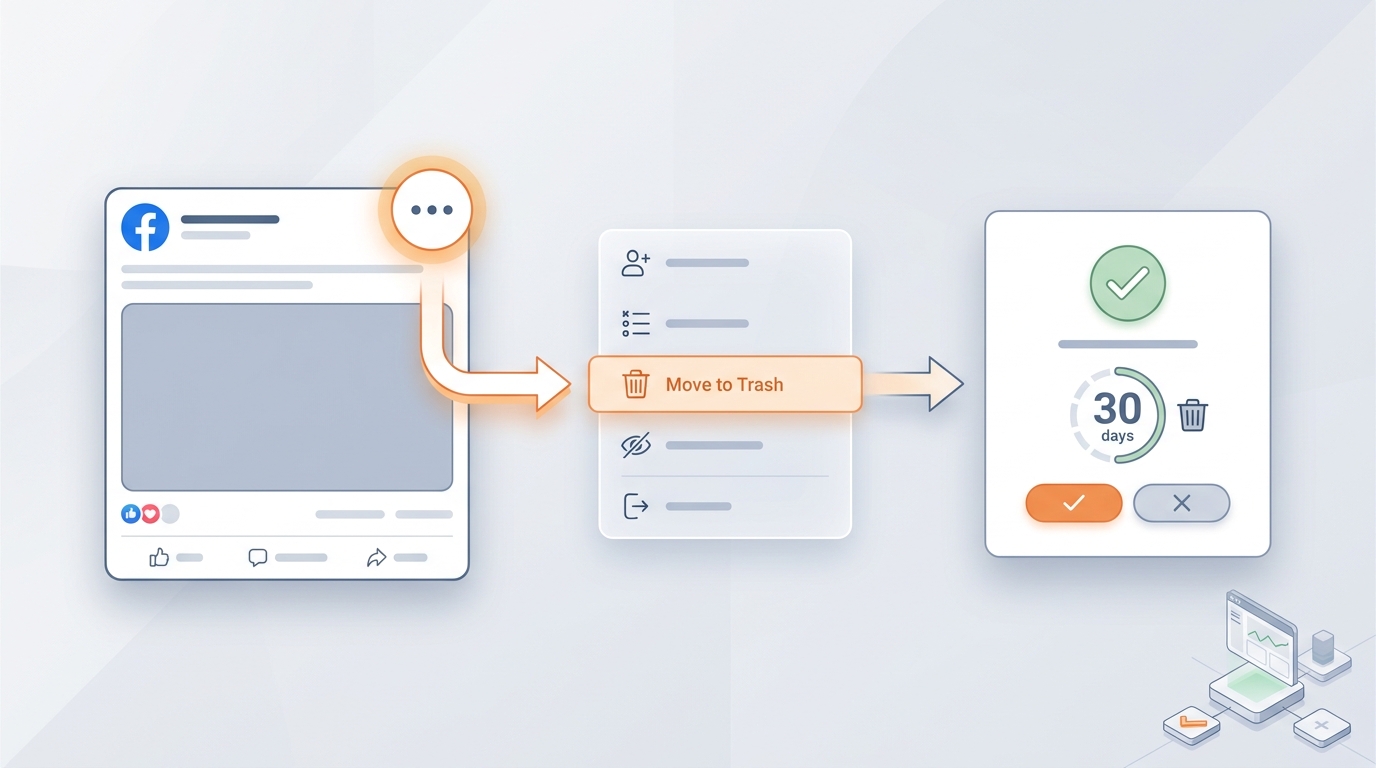
To erase a post on Facebook, navigate to the post on your profile or timeline, click the three-dot menu (⋯) in the top-right corner of the post, then select « Move to trash » or « Delete. » Confirm your choice. Deleted posts move to the trash for 30 days before permanent removal, giving you time to restore them if needed.
How do you delete multiple Facebook posts at once?
To delete multiple Facebook posts at once, use the Activity Log. Go to your profile, click the three-dot menu, and select « Activity Log. » From there, tap « Manage Activity, » filter by date or type, check the posts you want to remove, and click « Trash. » This batch method saves time when clearing out many old posts quickly.
Can you recover deleted Facebook posts?
Yes, you can recover deleted Facebook posts within 30 days. When you delete a post, it moves to your trash rather than disappearing immediately. Go to your profile, open the menu, select « Activity Log, » then « Trash. » Choose the post you want to restore and click « Restore. » After 30 days, posts are permanently deleted and cannot be recovered.
How do you erase posts on Facebook from your phone?
To erase a Facebook post from your phone, open the Facebook app and go to your profile. Find the post you want to remove, tap the three-dot icon in the top-right corner, then select « Move to trash » or « Delete. » Confirm the action. The steps are nearly identical to the desktop version, with the post moving to trash for 30 days.
What is the difference between deleting and hiding a Facebook post?
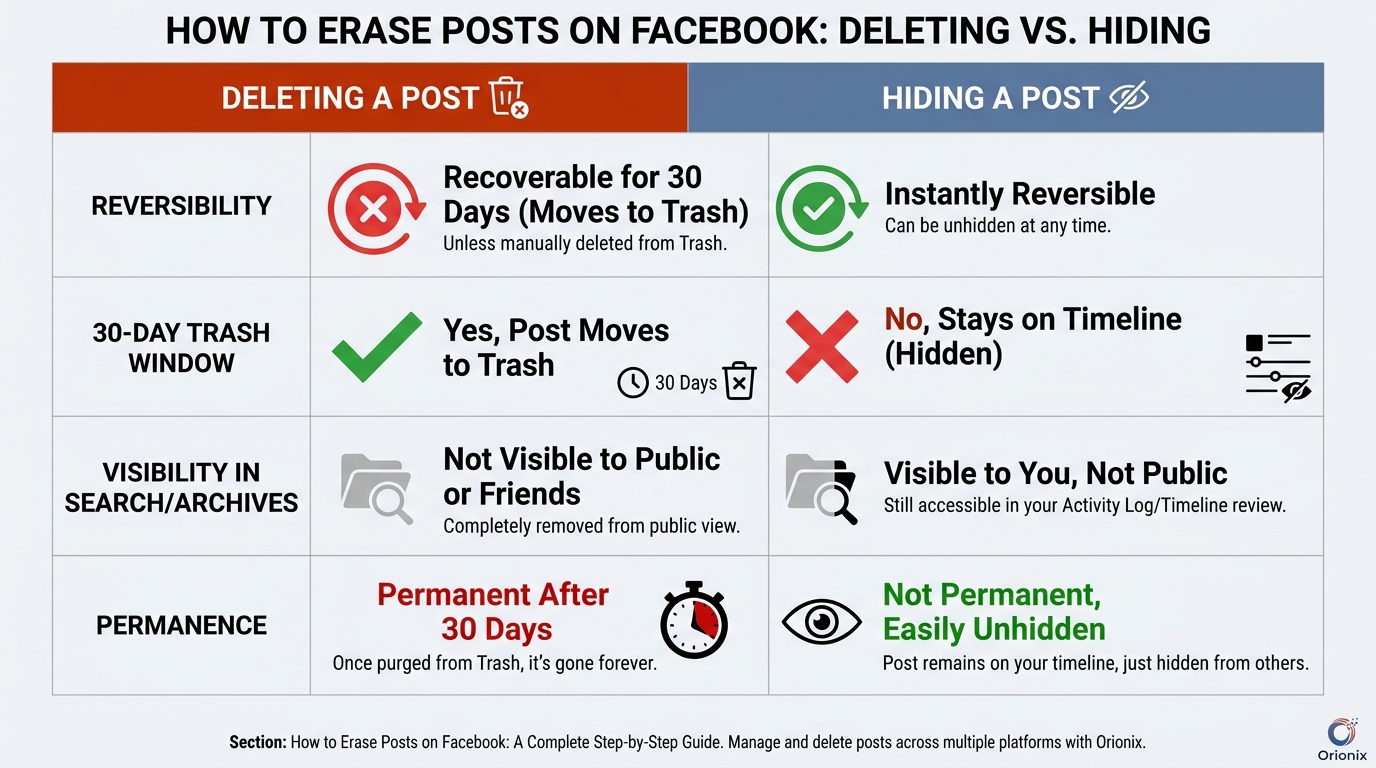
Deleting a Facebook post removes it entirely from your profile and moves it to the trash for 30 days before permanent removal. Hiding a post keeps it but makes it invisible on your timeline, though it may still appear in search or archives. Deleting is permanent, while hiding is reversible and preserves the content privately.
Can you delete a Facebook post you shared from someone else?
Yes, you can delete a shared Facebook post. Locate the shared post on your profile, click the three-dot menu in the top-right corner, and select « Move to trash » or « Remove post. » This only removes it from your profile, not the original post. The original poster’s content remains unaffected on their own timeline.
How do you see who shared your post on Facebook?
To see who shared your Facebook post, click the number of shares displayed below the post. A window will appear listing everyone who reshared it, provided their sharing settings are public. If someone shared privately or to a limited audience, you may not be able to see their name in the list.
How can you manage and delete posts across multiple social media platforms?
You can manage and delete posts across multiple platforms using a social media management tool like Orionix. From a single dashboard, you can plan, create, publish, and remove content on Facebook, Instagram, and other networks. This centralized approach saves time and helps maintain consistent branding without logging into each platform separately.
How to Erase Posts on Facebook: A Complete Step-by-Step Guide
Knowing how to erase posts on Facebook is an essential skill for anyone who manages a personal profile, business page, or multiple client accounts. Whether you’re cleaning up outdated content, removing embarrassing throwbacks, or refining your brand image, deleting Facebook posts is straightforward once you know where to look. 🧹
In this comprehensive guide, we’ll walk through every method for removing posts on desktop and mobile, explain the difference between deleting and archiving, and cover how businesses can manage their content more efficiently. This matters just as much for personal users as it does for those handling social media marketing at scale.
Why You Might Want to Delete Facebook Posts
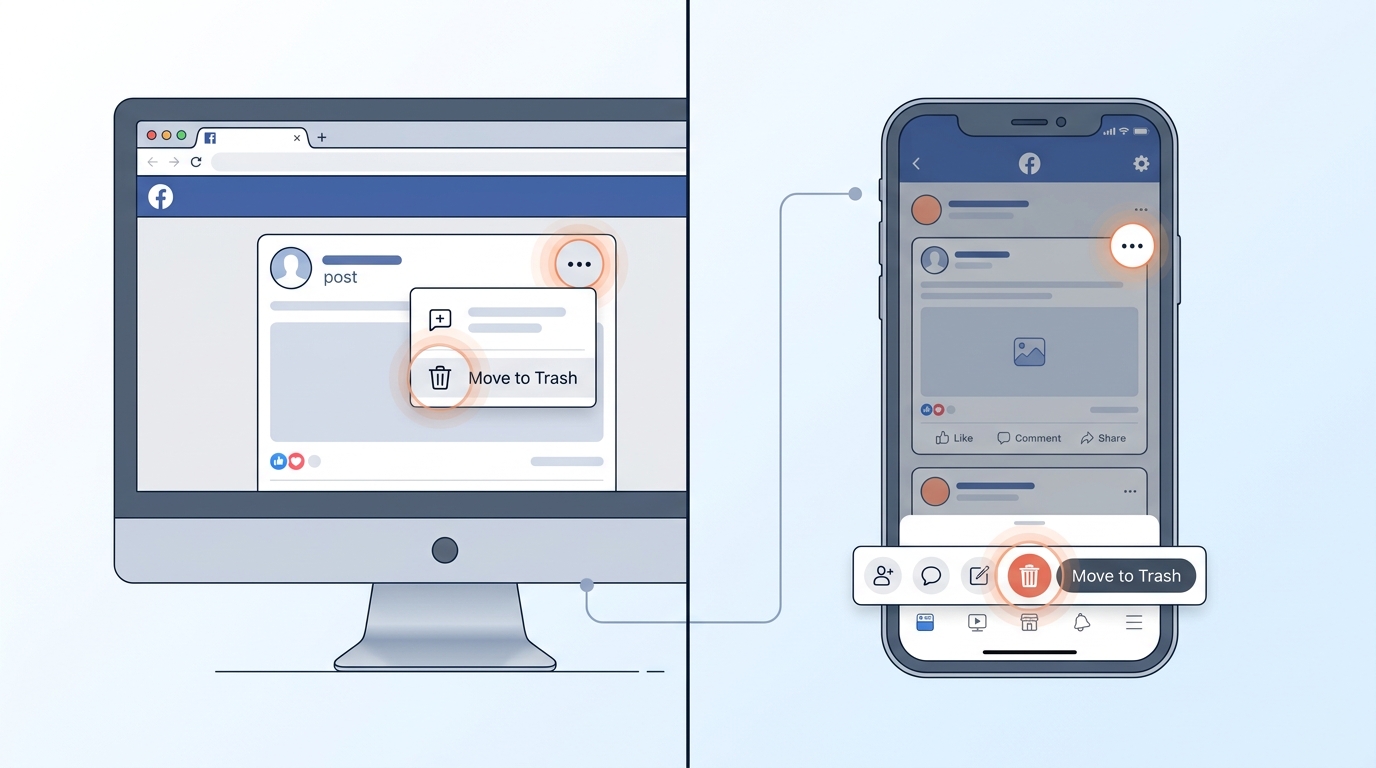
There are countless reasons to remove content from your Facebook timeline. Understanding your motivation helps you choose between permanent deletion and other options like hiding or archiving.
- Outdated information: Old promotions, expired events, or obsolete announcements.
- Brand consistency: Posts that no longer match your current visual identity or tone.
- Privacy concerns: Content that reveals too much personal information.
- Mistakes: Typos, wrong links, or posts published to the wrong account.
- Cleaning up engagement metrics: Removing low-performing posts that clutter your feed.
As the old saying goes, you reap what you sow — and in the world of social media, the content you leave visible shapes how your audience perceives you. If you’re unsure of the reap what you sow definition in this context, it simply means your published posts have lasting consequences on your reputation.
How to Erase Posts on Facebook (Desktop)
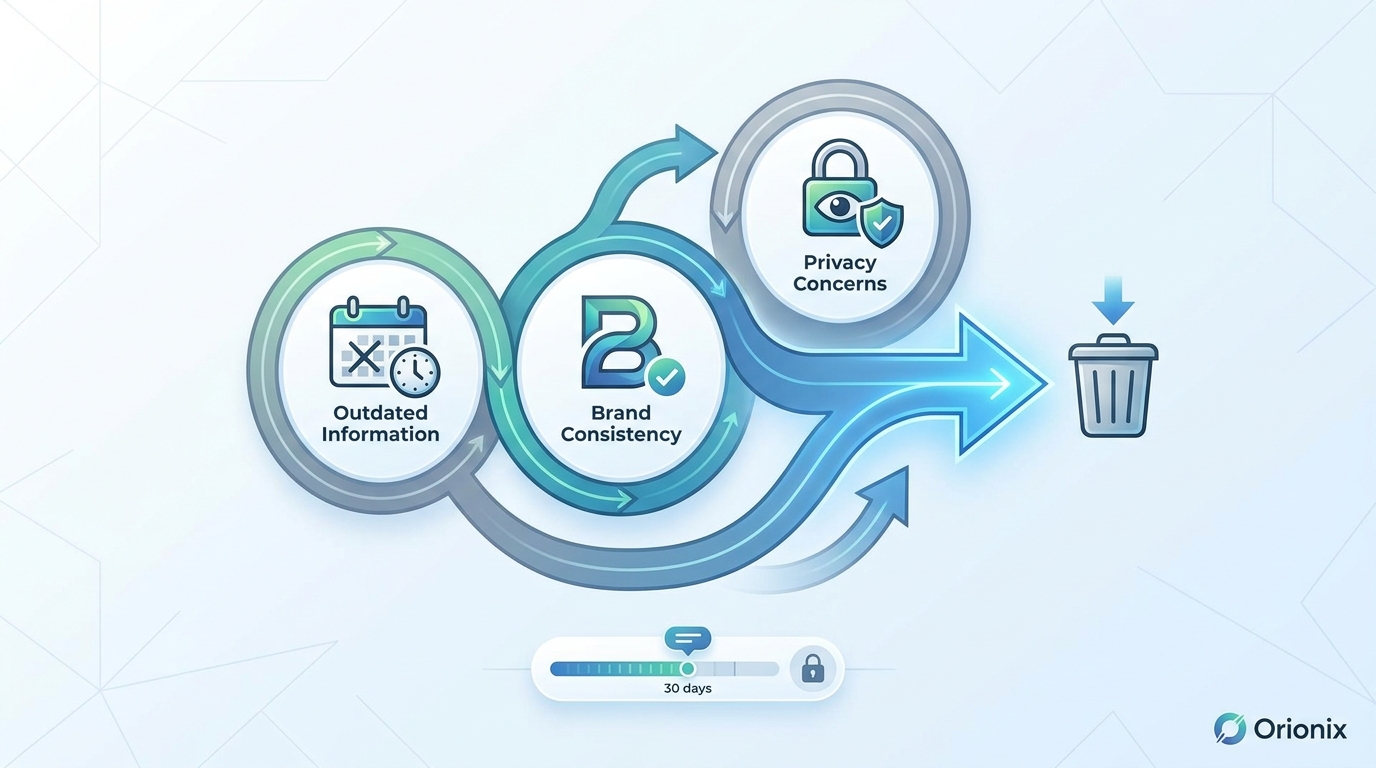
Deleting a post from a computer is the most common method. Follow these clear steps: 💻
- Log in to your Facebook account and navigate to your profile or the post you want to remove.
- Locate the post on your timeline or the page’s activity feed.
- Click the three-dot menu (⋯) in the top-right corner of the post.
- Select « Move to trash » or « Delete post » from the dropdown menu.
- Confirm your choice when prompted.
Facebook now moves deleted posts to a trash folder, where they remain for 30 days before permanent removal. This gives you a safety net if you change your mind.
Restoring a Deleted Post from Trash
If you accidentally erased a post, you can recover it:
- Go to Settings & Privacy → Activity Log.
- Click on Trash in the left-hand menu.
- Select the post you want to restore and choose Restore.
How to Delete Posts on the Facebook Mobile App
Managing content on the go is easy with the mobile app. 📱
- Open the Facebook app and go to your profile or page.
- Scroll to the post you want to erase.
- Tap the three-dot icon in the upper-right corner of the post.
- Tap « Move to trash » and confirm.
The mobile process mirrors the desktop workflow, making it convenient whether you’re at your desk or away from it.
Bulk Deleting Multiple Posts
To remove several posts at once, use the Activity Log’s Manage Activity tool:
- Open Activity Log from your profile menu.
- Tap Manage Activity.
- Filter posts by date or category.
- Select multiple posts using the checkboxes.
- Choose Trash or Archive to process them in bulk.
Delete vs. Archive vs. Hide: What’s the Difference?
Facebook offers several ways to remove posts from view without necessarily erasing them forever. Here’s a comparison to help you decide.
| Option | Visibility | Reversible? | Best For |
|---|---|---|---|
| Delete (Trash) | Removed for 30 days, then permanent | Yes, within 30 days | Content you no longer want |
| Archive | Hidden from public, saved for you | Yes, anytime | Keeping personal records |
| Hide | Removed from timeline, still on page | Yes | Temporary decluttering |
Managing Posts Across Social Media Platforms
For those working in social media and content management, deleting posts on Facebook is only one part of a broader workflow. Marketers often juggle multiple channels, each with its own rules and best practices.
Understanding platform-specific requirements is crucial. For example, the recommended dimensions for Instagram post content differ from Facebook’s ideal sizes, so cross-posting requires attention to detail. Similarly, learning how to repost on Instagram is a different process than sharing on Facebook.
Cross-Platform Content Considerations
- Each platform has unique image and video specifications.
- Deleting a post on one network doesn’t affect duplicates elsewhere.
- Businesses using social media management platforms can coordinate deletions and edits across accounts.
- Many sites for Instagram and Facebook scheduling help teams stay organized.
If you frequently ask what does and mean in text or what does the suffix on mean when analyzing captions and comments, you’ll appreciate tools that streamline content review across all your channels.
How to See Who Shared Your Post on Facebook
Before deleting a post, you may want to understand its reach. Knowing how to see who shared your post on Facebook helps you gauge impact and decide whether removal is worthwhile. 🔍
- Open the post on your timeline or page.
- Look for the « shares » count below the post.
- Click the number of shares to see a list of people (subject to their privacy settings).
Note that private shares won’t display publicly. This transparency helps you evaluate engagement before erasing content that may still be circulating.
Best Practices for Managing Facebook Content
Deleting posts should be part of a thoughtful content strategy rather than a reactive measure. Consider these tips:
- Audit regularly: Review your timeline quarterly to identify outdated content.
- Archive instead of delete: Preserve records that might be useful later.
- Back up important posts: Download your Facebook data before mass deletions.
- Use scheduling tools: Plan content carefully to reduce the need for deletions.
- Monitor engagement: Track performance so you delete strategically.
Common Mistakes to Avoid
- Deleting posts with high engagement without archiving first.
- Forgetting that trashed posts vanish after 30 days.
- Removing content that’s still driving traffic or conversions.
- Not checking share counts before erasing viral posts.
Streamline Your Social Media Workflow
Manually deleting and managing posts across Facebook, Instagram, and other networks can be time-consuming — especially for agencies and marketing teams handling multiple accounts. This is where a centralized platform becomes invaluable. 🚀
Orionix helps social media managers, content creators, and small business owners plan, create, and publish content across multiple platforms from a single dashboard. Instead of switching between apps to manage social media marketing campaigns, you can coordinate everything in one place.
Ready to simplify your content management and take control of your posts across every channel? Visit our website to see how Orionix can transform your workflow and keep your social media presence polished and professional.
Article created using IntentRank